
Table of Contents
- Quick Answer: Can You Move from WooCommerce to Shopify Without Losing SEO?
- Why Are Businesses Moving from WooCommerce to Shopify?
- How Can WooCommerce to Shopify Migration Affect SEO?
- WooCommerce vs Shopify: SEO Migration Differences
- How to Migrate WooCommerce to Shopify Without Losing SEO: Step-by-Step Guide
- Technical SEO Checklist Before Launching Shopify
- Common WooCommerce to Shopify Migration Mistakes
- How to Monitor SEO Performance After Migration
- Practical Example: Migrating a Growing Ecommerce Store
- How Basil Tech Solutions Can Help With WooCommerce to Shopify Migration
- Frequently Asked Questions
Moving from WooCommerce to Shopify can be a major step toward simplifying ecommerce management, improving store operations, and preparing your business for growth. However, there is one concern that often holds established store owners back: what happens to the SEO rankings, organic traffic, and search visibility they have already built?
Your WooCommerce website may have hundreds of indexed product pages, category rankings, valuable backlinks, and blog articles that attract customers every day. An improperly managed migration can disrupt those assets, leading to broken URLs, indexing problems, and lost organic traffic.
Fortunately, a well-planned WooCommerce to Shopify migration can protect much of your existing SEO value while establishing a stronger foundation for future optimization.
The key is understanding that migrating an ecommerce store involves more than transferring products. You must also preserve important content, implement permanent redirects, maintain technical SEO signals, and monitor performance after launch.
This guide explains how to migrate WooCommerce to Shopify without unnecessary SEO losses, including the preparation, migration process, technical checks, common mistakes, and post-launch monitoring required for a successful transition.
Quick Answer: Can You Move from WooCommerce to Shopify Without Losing SEO?
Yes. You can migrate from WooCommerce to Shopify while preserving much of your existing SEO value by mapping old URLs to relevant new pages, implementing 301 redirects, retaining important content and metadata, maintaining internal links, and monitoring indexing after launch.
However, no migration can guarantee completely unchanged rankings. Google may temporarily reassess pages as it discovers their new URLs and structure.
The objective is to minimize preventable SEO losses and help search engines understand the move correctly.
Why Are Businesses Moving from WooCommerce to Shopify?
WooCommerce and Shopify are both established ecommerce platforms, but they approach store management differently.
WooCommerce operates as a WordPress plugin, giving businesses extensive flexibility over hosting, website architecture, and customization. However, managing that flexibility may require ongoing attention to hosting, plugin compatibility, updates, and security.
Shopify offers a hosted ecommerce platform with integrated storefront management, checkout functionality, and infrastructure.
For businesses evaluating the move, the decision should depend on operational requirements rather than the assumption that one platform automatically ranks better in Google.
Simplified Ecommerce Management
Shopify brings product management, inventory, orders, and storefront operations into a centralized environment.
Consequently, businesses may spend less time coordinating separate hosting, security, and plugin-management responsibilities.
Reduced Infrastructure Complexity
WooCommerce stores often depend on hosting configurations and several plugins to manage essential functionality.
Shopify manages the underlying hosting infrastructure, although merchants still need to maintain themes, applications, integrations, and their own configurations.
Built-In Ecommerce Capabilities
Shopify provides native ecommerce features, including checkout, product catalogs, discount management, and sales channel integrations.
However, stores with advanced pricing rules, unusual product structures, or extensive customization should assess compatibility before migrating.
Opportunities for Conversion Optimization
Migration also creates an opportunity to improve mobile navigation, product discovery, and checkout experiences.
Nevertheless, significant redesigns should not automatically accompany the SEO migration. Separating the platform transition from major design changes can make problems easier to diagnose.
For a broader view of ecommerce projects and storefront improvements, explore the Basil Tech Solutions ecommerce case studies.
How Can WooCommerce to Shopify Migration Affect SEO?
SEO rankings depend on multiple signals, including page relevance, content quality, internal linking, backlinks, and search engine accessibility.
Moving between platforms can change several of these signals simultaneously.
Changes to URL Structure
WooCommerce URLs commonly follow structures such as:
example.com/product/blue-running-shoes/
Shopify typically uses:
example.com/products/blue-running-shoes
Although these addresses refer to the same product, Google initially recognizes them as different URLs.
Without a permanent redirect, visitors and search engines attempting to access the original page may encounter an error.
Lost or Modified Page Content
Product descriptions, category copy, headings, and blog articles contribute to a website's relevance for specific searches.
If migration replaces detailed product descriptions with shorter generic copy, the new pages may no longer satisfy the same search intent.
Broken Internal Links
Existing WooCommerce blog articles may link to products using the old URL structure.
Even when redirects exist, leaving these links unchanged introduces unnecessary redirect requests and makes the site's internal architecture less efficient.
Missing Technical SEO Elements
Migration can also affect canonical tags, structured data, image references, sitemaps, and crawl directives.
For example, an accidentally retained noindex instruction can prevent an important product page from appearing in search results.
Temporary Search Ranking Fluctuations
Google's official site migration documentation explains that search visibility can fluctuate temporarily while Google recrawls and processes changed URLs.
Kyle Risley, Senior Lead of SEO at Shopify, also notes in Shopify's SEO migration guide:
“Any time you change URLs, there will be some impact on SEO traffic.”
Therefore, the goal is not to promise zero fluctuations. Instead, it is to preserve the signals that allow Google to associate old content with its new location.
WooCommerce vs Shopify: SEO Migration Differences
Understanding the technical differences between the platforms helps prevent common migration errors.
| SEO Element | WooCommerce | Shopify |
|---|---|---|
| Product URLs | Configurable permalink structures | Typically /products/product-name |
| Category URLs | Often /product-category/category-name |
/collections/collection-name |
| Blog URLs | WordPress permalink structures | /blogs/blog-name/article-name |
| Metadata | Usually managed through WordPress SEO tools | Editable in Shopify's search engine listing fields |
| XML Sitemap | WordPress core or SEO plugin | Automatically generated |
| Redirect Management | Hosting rules or WordPress plugins | Shopify URL redirects |
| Canonical Tags | Controlled by themes or SEO plugins | Automatically supported, with theme-level considerations |
| Structured Data | Plugin or custom implementation | Theme and application dependent |
| Hosting | Merchant-managed or third-party | Shopify-hosted |
The most important difference during migration is URL structure.
Even when your domain name remains unchanged, product, collection, and blog URLs may change.
That means a same-domain migration still requires a carefully prepared URL mapping and redirect strategy.
How to Migrate WooCommerce to Shopify Without Losing SEO: Step-by-Step Guide
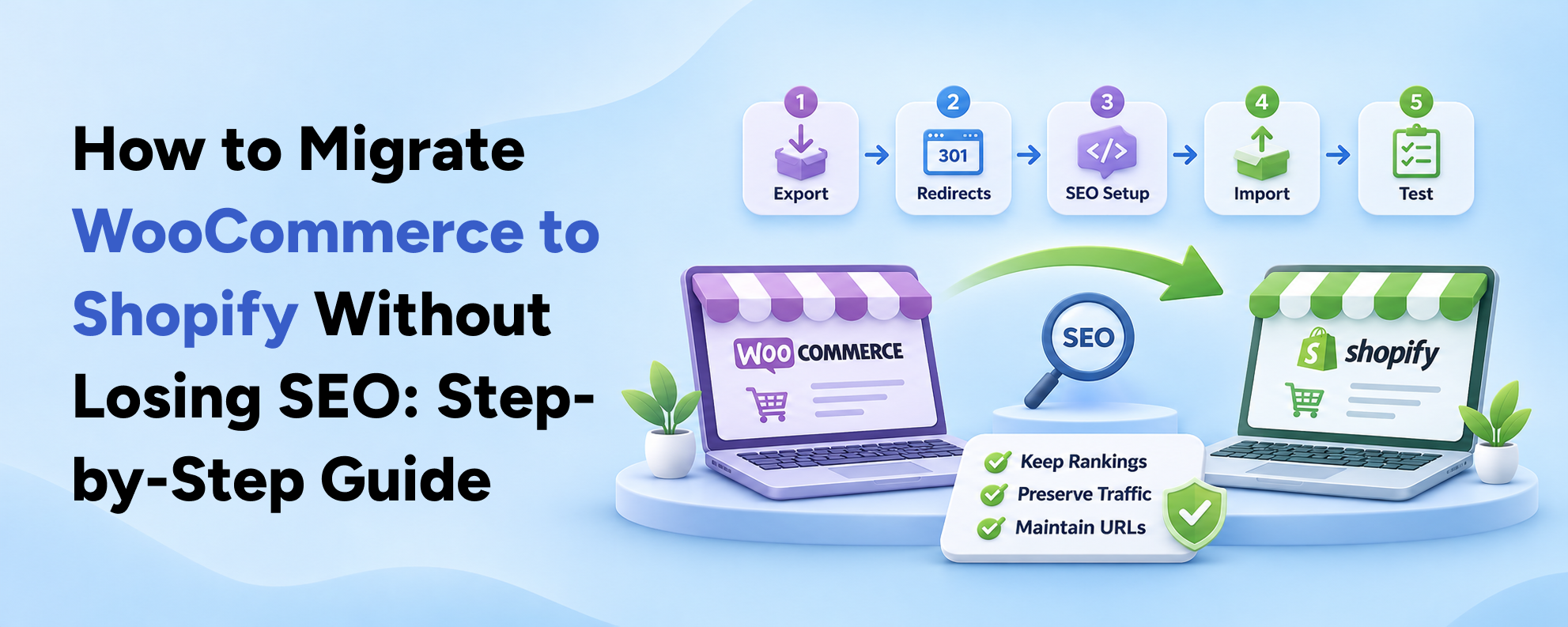
A successful WooCommerce to Shopify SEO migration follows a structured process.
Step 1: Conduct a Complete WooCommerce SEO Audit
Before moving any data, evaluate the existing website.
This audit establishes a performance baseline and identifies the pages that require special attention.
Identify Your Most Valuable Pages
Use Google Search Console and your analytics platform to identify:
- Product pages generating organic traffic.
- Categories ranking for commercial keywords.
- Blog articles attracting search visitors.
- Pages receiving valuable backlinks.
- URLs contributing to organic revenue.
- High-impression pages with strong search visibility.
Additionally, export the current website's XML sitemap and crawl the site using an SEO crawler.
Your inventory should include page URLs, title tags, meta descriptions, headings, canonical URLs, image references, and indexability status.
This information becomes your reference during migration.
Record SEO Performance Before Migration
Capture at least the previous three months of available data, accounting for seasonal changes.
Important benchmarks include organic clicks, impressions, average search position, organic landing pages, ecommerce conversions, and organic revenue.
For businesses with seasonal demand, comparing year-over-year periods also provides useful context.
Without this baseline, determining whether a post-migration traffic change reflects technical problems or normal demand fluctuations becomes difficult.
Step 2: Back Up Your WooCommerce Store
Create a complete backup of the existing WordPress website before changing anything.
Include the database, product records, customer information, media files, blog content, theme settings, and available SEO configuration.
Keep the original WooCommerce store accessible during the preparation and data-import stages.
Shopify's official WooCommerce migration instructions specifically advise keeping the existing store online while product images are imported from their source URLs.
A backup also provides a reference if product information or content needs to be checked after migration.
Step 3: Create Your Shopify Store and Plan the New Structure
Build the Shopify storefront before switching your live domain.
At this stage, confirm the intended product organization, collections, navigation, theme, payment methods, and essential applications.
Next, determine how your WooCommerce categories will translate into Shopify collections.
For example, a store selling sports equipment may currently organize products under several nested WordPress categories.
In Shopify, those products may appear within collections such as running shoes, fitness accessories, or outdoor equipment.
However, avoid reorganizing every category simply because Shopify provides a different navigation system.
Preserving important categories and their search intent reduces unnecessary changes.
Also, keep the development storefront password-protected until launch so unfinished pages do not become publicly accessible.
Step 4: Migrate Products, Customers, and Essential Data
After establishing the structure, transfer the relevant ecommerce information.
Typical migration data includes:
- Products, descriptions, prices, and SKUs.
- Product images and available variations.
- Customer contact records.
- Inventory and stock information.
- Collections and relevant categorization.
- Historical orders and product reviews.
- Blog posts and informational pages.
Shopify provides a Store Migration app for importing WooCommerce product and customer CSV files.
However, not every type of information moves through the same import process.
For example, historical orders, reviews, and WordPress blog content may require separate tools or migration methods.
Customer passwords also cannot be transferred directly. Depending on the Shopify account configuration, customers may sign in using one-time email verification codes or need to establish new credentials.
Check Complex Product Variations
Stores selling configurable products should pay particular attention to WooCommerce variations.
Shopify's Store Migration app documentation identifies a limit of three product options through that particular import workflow.
Products with more complex attributes may require additional configuration, metafields, or specialized migration tools.
Therefore, validate sample products before importing the complete catalog.
Step 5: Map Every Important WooCommerce URL to Shopify
URL mapping is one of the most important stages of a migration.
Create a spreadsheet with two essential columns:
- Old WooCommerce URL.
- Corresponding Shopify URL.
Each important old URL should point to the most relevant new destination.
Consider the following example:
| Old WooCommerce URL | New Shopify URL |
|---|---|
/product/running-shoes/ |
/products/running-shoes |
/product-category/footwear/ |
/collections/footwear |
/blog/shoe-size-guide/ |
/blogs/guides/shoe-size-guide |
/about-us/ |
/pages/about-us |
/contact/ |
/pages/contact |
These are illustrative paths; actual mappings depend on your existing permalink structure and Shopify setup.
The objective is to preserve relevance.
A product page should redirect to its equivalent product page wherever possible. Similarly, a category should redirect to the corresponding collection rather than an unrelated page.
If several pages are genuinely consolidated into one comprehensive replacement, multiple old URLs may appropriately point to that new resource.
However, Google advises against redirecting unrelated deleted pages to the homepage, because those redirects may be treated as soft 404 errors.
Step 6: Implement 301 Redirects in Shopify
A 301 redirect tells browsers and search engines that a page has permanently moved.
For example, the old URL https://example.com/product/black-hoodie/ would redirect to the new URL https://example.com/products/black-hoodie.
A correctly configured redirect automatically takes visitors from the old product URL to the new one.
How to Add Redirects in Shopify
Within Shopify admin:
- Open Content.
- Select Menus.
- Open URL redirects.
- Select Create URL redirect.
- Enter the old URL path under Redirect from.
- Enter the new Shopify path under Redirect to.
- Save the redirect.
For larger migrations, Shopify also supports importing redirect mappings through CSV files.
You can review the current process in Shopify's URL redirect documentation.
Important Shopify Redirect Limitations
Shopify's standard redirect functionality has certain restrictions.
For example, redirects generally work from broken URLs and cannot override an existing valid storefront page. Some reserved paths and special URL formats also have restrictions.
Additionally, Shopify documents a maximum of 100,000 redirects for standard plans and 20 million for Shopify Plus.
Stores with complex legacy URLs, filtering parameters, or large catalogs should review these limitations before launch.
For SEO, also avoid redirect chains.
Instead of sending visitors through several intermediate addresses, redirect each old URL directly to its intended final destination.
Step 7: Preserve SEO Titles, Descriptions, and Page Content
Moving products successfully does not automatically mean their SEO signals have been preserved.
Important on-page elements should remain consistent wherever they are still relevant and effective.
SEO Title Tags and Meta Descriptions
Export your existing title tags and meta descriptions before migration.
Then, reproduce them in Shopify's search engine listing fields.
For example:
- SEO Title: Men's Lightweight Running Shoes | Example Store
- Meta Description: Explore lightweight running shoes designed for everyday comfort, flexible movement, and dependable performance.
Avoid replacing well-performing titles with generic alternatives during the transition.
Product and Collection Content
Maintain important product descriptions, specifications, FAQs, category introductions, and supporting information.
Ensure the primary headings and page content continue addressing the same customer questions and search intent.
You can improve content later, but performing major rewrites during migration introduces additional variables.
Image Optimization
Preserve descriptive image alt text where appropriate, and confirm all product images load correctly.
Check important existing image URLs, especially images that receive search traffic or external links.
Since Shopify typically serves uploaded images through its CDN, old WordPress media URLs may require separate handling.
Do not assume every legacy image URL will automatically redirect to the new file.
Step 8: Migrate Blog Content Without Losing Organic Traffic
Blog content is frequently overlooked during ecommerce migration.
However, informational articles may contribute significantly to search visibility by attracting visitors before they are ready to purchase.
For example, an article answering “How to choose the right running shoes” could introduce customers to products long before they search for a particular model.
When migrating WordPress content, preserve:
- Article titles and relevant headings.
- Original publication information where appropriate.
- Helpful explanations and supporting details.
- Internal links to products and categories.
- Important images and image descriptions.
- Relevant metadata and canonical signals.
Next, map each WordPress article URL to its Shopify blog equivalent.
Finally, update every internal link in migrated posts to point directly to the correct Shopify page.
For more ideas on building useful ecommerce content alongside your storefront, visit the Basil Tech Solutions blog.
Step 9: Review Canonical Tags and Structured Data
Canonical tags help search engines identify a preferred URL when similar or duplicate pages exist.
After migration, verify that your Shopify theme outputs appropriate canonical URLs for products, collections, and articles.
The canonical should generally reference the intended indexable URL, not an outdated WooCommerce address.
Also review product structured data.
Google's merchant listing structured data guidelines describe how product information such as price, availability, shipping, and returns can support eligibility for enhanced shopping displays.
Test representative Shopify product pages and check that the rendered structured data matches the visible product information.
If the store operates internationally, review localized URLs and hreflang configurations as well.
Step 10: Submit Your Shopify Sitemap to Google
Shopify automatically generates an XML sitemap.
It is generally available at https://example.com/sitemap.xml.
The sitemap references products, collections, pages, and blog content.
After launch:
- Open Google Search Console.
- Select the relevant website property.
- Navigate to Sitemaps.
- Submit the Shopify sitemap URL.
- Monitor processing and indexing reports.
The sitemap helps Google discover the new website structure. However, submitting it does not guarantee immediate indexing or specific rankings.
If your domain remains unchanged, you generally do not need Google's Change of Address tool.
That tool is intended for qualifying moves between domains or subdomains, not ordinary URL-path changes within the same domain.
Technical SEO Checklist Before Launching Shopify
Before switching the live website to Shopify, complete a full technical review.
Website Accessibility and Indexing
Confirm that important storefront pages return successful HTTP responses.
Also, ensure the public website has no accidental password protection, noindex directives, or robots.txt restrictions that prevent intended crawling.
Internal Linking and Navigation
Check the main navigation, footer, product recommendations, collection links, and blog content.
Every internal link should ideally point directly to the final Shopify URL.
Mobile Experience and Core Web Vitals
Evaluate the Shopify storefront on actual mobile devices as well as desktop browsers.
According to Google's Core Web Vitals guidance, the recommended good-performance thresholds are:
| Metric | Recommended Threshold |
|---|---|
| Largest Contentful Paint (LCP) | 2.5 seconds or less |
| Interaction to Next Paint (INP) | 200 milliseconds or less |
| Cumulative Layout Shift (CLS) | 0.1 or less |
These metrics measure loading experience, responsiveness, and visual stability.
A migration should ideally avoid worsening the existing site's performance while supporting a smooth shopping experience.
Ecommerce Tracking and Conversion Events
Verify that Google Analytics 4 and any advertising integrations are configured correctly.
Test essential ecommerce events, such as product views, add-to-cart actions, checkout progress, and completed purchases.
Also, check for duplicate event tracking caused by multiple overlapping integrations.
Checkout and Customer Experience
Test actual shopping journeys before launch.
Check product variations, inventory, discount codes, shipping costs, tax calculations, payment methods, and order confirmation.
Even a technically successful SEO migration can harm revenue if customers encounter checkout errors.
Common WooCommerce to Shopify Migration Mistakes
Several preventable mistakes can make an otherwise straightforward migration more difficult.
Mistake 1: Redirecting Every Old Page to the Homepage
This approach does not preserve the individual relevance of old product and category pages.
Instead, map old URLs to equivalent or closely related destinations.
Mistake 2: Removing High-Performing Blog Content
Deleting informational articles may remove pages that attract backlinks and organic traffic.
Audit their value before deciding to remove, consolidate, or migrate them.
Mistake 3: Changing Everything During Migration
A platform migration combined with a new domain, complete redesign, content rewrite, and category restructure can create unnecessary complexity.
Where practical, introduce major changes separately.
Mistake 4: Ignoring Product Variations
Missing product variants, broken selectors, or incorrectly imported attributes can harm both shopping functionality and the relevance of product pages.
Test complex products before launch.
Mistake 5: Forgetting Canonical and Indexing Checks
Incorrect canonical tags or accidental noindex directives can prevent search engines from identifying the intended pages.
Review them before and after launch.
Mistake 6: Assuming Redirects Guarantee Rankings
Permanent redirects are important, but they cannot compensate for missing content, poor navigation, irrelevant replacement pages, or broken technical elements.
Effective migration requires preserving the complete search experience.
Mistake 7: Stopping Monitoring Immediately After Launch
Migration does not end when the new store becomes publicly available.
Google needs time to discover the changes, so ongoing monitoring is necessary to identify issues early.
How to Monitor SEO Performance After Migration
After launching Shopify, establish a monitoring process for the first 90 days, extending it where necessary.
First 24–72 Hours: Verify Critical Functionality
Immediately check that important old URLs redirect successfully.
Also, verify the sitemap, robots.txt, canonical tags, analytics implementation, checkout, and high-priority product pages.
Investigate unexpected 404 errors and inaccessible pages first.
First 7–14 Days: Monitor Indexing and Search Visibility
Review Google Search Console regularly for:
- Changes in indexed URLs.
- Pages returning 404 errors.
- Unexpected exclusions or crawl restrictions.
- Redirect errors and inconsistent canonicals.
- Significant changes in organic clicks and impressions.
Compare important landing pages against their pre-migration baseline rather than relying on total website traffic alone.
Days 15–30: Review Rankings and Revenue
Analyze organic search performance for major product categories and high-value queries.
Also, compare organic revenue, conversion rate, and landing page performance.
If traffic declines, determine whether the change is widespread or concentrated on specific URL groups.
For example, a drop affecting only collection pages may suggest a taxonomy, internal linking, or collection-content problem.
Days 31–90: Stabilize and Improve
Continue checking indexing and traffic trends as Google processes the migration.
Once the new site stabilizes, review opportunities for content improvements, internal linking, page performance, and conversion optimization.
Google recommends retaining migration redirects for at least one year and, where practical, indefinitely.
That helps preserve access for users and websites that continue linking to old URLs.
Practical Example: Migrating a Growing Ecommerce Store
Consider a hypothetical apparel business planning to move its WooCommerce website to Shopify.
The existing store contains:
- 500 products.
- 35 product categories.
- 80 blog articles.
- Several established ranking pages.
- Backlinks to older product and editorial URLs.
The business wants to improve storefront operations without unnecessarily sacrificing organic visibility.
The Migration Risk
The current WooCommerce website uses /product/ and /product-category/ URL structures.
Shopify will introduce /products/ and /collections/ paths.
If those URLs change without proper redirects, search engines and customers may struggle to reach previously established pages.
The Recommended Approach
The migration team first exports an inventory of URLs, metadata, organic landing pages, and backlink information.
Next, the team builds the Shopify store, imports products, recreates useful collection content, and transfers blog articles.
Every valuable old URL receives a relevant new destination.
Permanent redirects are then configured and tested alongside canonical tags, structured data, and internal links.
Finally, the team launches the new store and monitors Google Search Console and organic revenue.
The Expected Outcome
This process reduces avoidable technical risks and gives Google clearer signals about where the original content has moved.
It does not guarantee unchanged rankings, but it provides a controlled foundation for preserving search visibility and diagnosing any issues.
This example illustrates a recommended migration workflow, not a claimed client result.
For a look at our wider ecommerce design and development work, see the Basil Tech Solutions fashion and apparel project.
How Basil Tech Solutions Can Help With WooCommerce to Shopify Migration
Migrating an established ecommerce business requires more than transferring a product catalog.
The storefront must remain functional, important content must remain accessible, and the new website should provide a reliable experience for both customers and search engines.
At Basil Tech Solutions, we bring Shopify development and digital marketing considerations together to help businesses plan ecommerce improvements with growth in mind.
A structured migration engagement can include reviewing existing storefront requirements, planning product and content transfer, building the Shopify experience, preparing SEO redirects, and evaluating important technical elements.
We also consider the relationship between website usability, organic search visibility, and conversion performance.
Instead of treating SEO as an afterthought, the objective is to account for it throughout migration planning and launch.
Planning a Move from WooCommerce to Shopify?
Whether you operate a growing product catalog or an established ecommerce brand, migration decisions should reflect your existing SEO assets, customer experience, and long-term business needs.
Connect with Basil Tech Solutions to discuss your current WooCommerce store and develop a practical Shopify migration plan.
Frequently Asked Questions
Will I Lose My Google Rankings When Migrating from WooCommerce to Shopify?
Not necessarily. A properly managed migration can preserve much of your SEO value through relevant 301 redirects, consistent content, correct canonical tags, and updated internal links. However, temporary fluctuations may occur while Google processes the new URLs, and identical rankings cannot be guaranteed.
How Do I Migrate WooCommerce to Shopify Without Losing SEO?
Begin with a complete SEO audit, export important data, create an old-to-new URL map, implement 301 redirects, preserve valuable content and metadata, and verify technical SEO before launch. After migration, monitor Google Search Console and analytics to identify indexing or traffic problems.
Does Shopify Have Better SEO Than WooCommerce?
Neither platform automatically guarantees better rankings. Both support important SEO capabilities. WooCommerce offers extensive technical flexibility, while Shopify provides integrated hosting and several built-in SEO functions. Results depend primarily on site quality, content, technical configuration, user experience, and ongoing optimization.
Are 301 Redirects Necessary When Moving from WooCommerce to Shopify?
Yes, when URLs change. Permanent redirects help search engines associate old pages with their new destinations and allow customers to access bookmarked links. Redirects should point to equivalent or closely relevant pages and should be tested after launch.
Can I Transfer WooCommerce Products, Customers, and Orders to Shopify?
Yes, but different data types may require different migration methods. Shopify supports product and customer imports, while historical orders, reviews, blog content, and more complex information may need additional tools. Customer passwords cannot be transferred directly.
How Long Does SEO Recovery Take After Shopify Migration?
There is no fixed recovery period. Some stores stabilize within weeks, while larger or more complex migrations may require several months. The number of changed URLs, technical implementation, crawl frequency, and content consistency all influence the process.
Can I Keep My Existing Domain When Switching to Shopify?
Yes. You can connect your existing domain to Shopify. However, keeping the same domain does not prevent product, collection, and blog URL changes. Those changed paths still require an SEO migration plan and appropriate redirects.
Should I Redesign My Website During WooCommerce to Shopify Migration?
A redesign is possible, but combining major design, content, and platform changes increases the number of variables affecting performance. Where practical, preserve effective page structures during migration and introduce larger design improvements after the new website has stabilized.